Download our postman collection
Postman allows you to explore JSON REST APIs. You can configure and send requests and receive responses for any of our core APIs.
Download our complete Vedic Astrology API collection for Postman. This includes all endpoints for generating horoscopes, charts, match making, and other astrological calculations.
Download our complete Western Astrology API collection for Postman. Includes endpoints for Western chart data, transit reports, and other Western astrology calculations.
Download our complete Palmistry API collection for Postman. Includes endpoints for palm reading, hand analysis, and other palmistry calculations.
Download the complete Vastu API collection for Postman. Includes floor-plan analysis, direct direction readings, scores, remedies, Mandala Padas, and Devata endpoints.
Download our complete Face Reading API collection for Postman. Includes face identification, facial feature analysis, and category-based reading endpoints.
Download our AstroCartoGraphy API collection for Postman. Includes endpoints for travel line coordinates, category-based locations, and planetary line reports.
Download our Human Design API collection for Postman. Includes endpoints for human design, human anatomy, and human physiology.
Download our complete Indian Astrology PDF API collection for Postman. Includes endpoints for horoscope, match-making, gemstone, and other PDF reports.
Download our complete Western Astrology API collection for Postman. Includes endpoints for Western chart data, transit reports, and other Western astrology calculations.
Import Instructions
Click here to import json collection
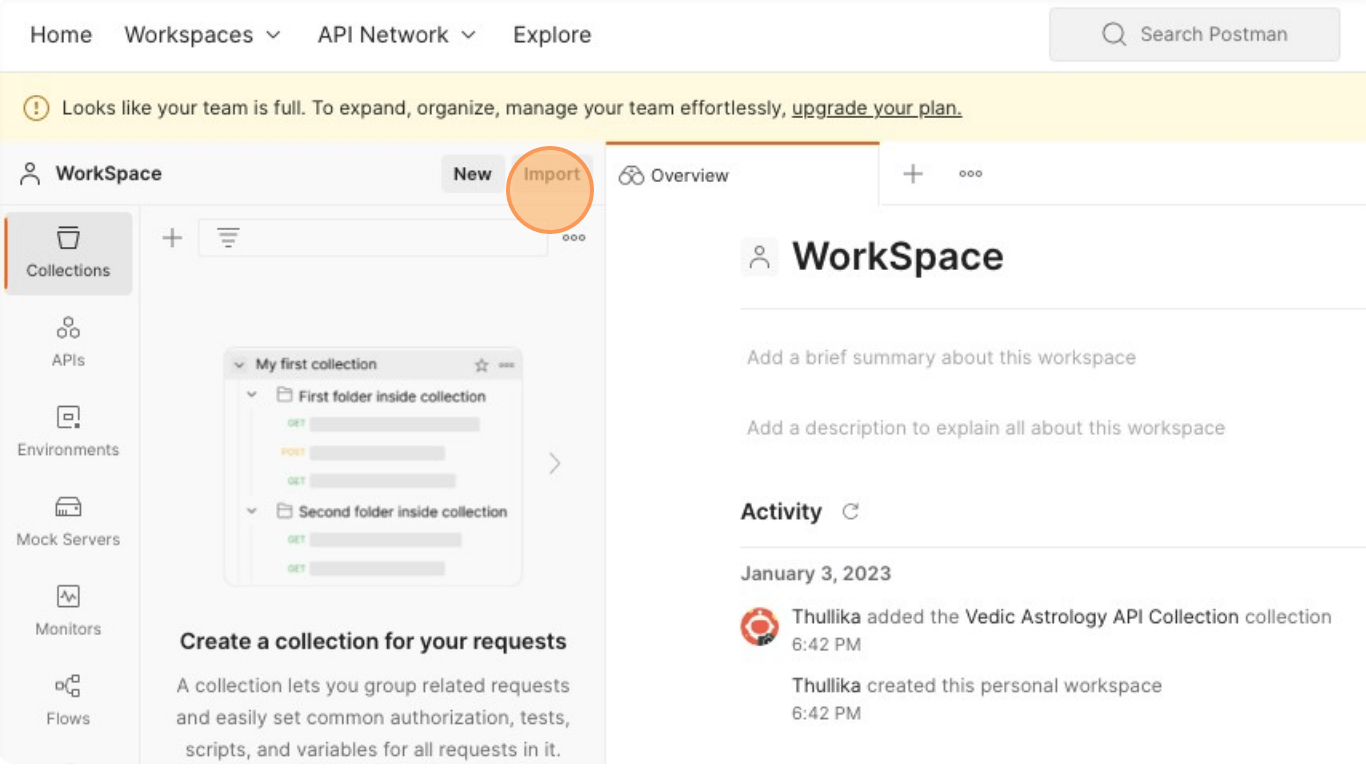
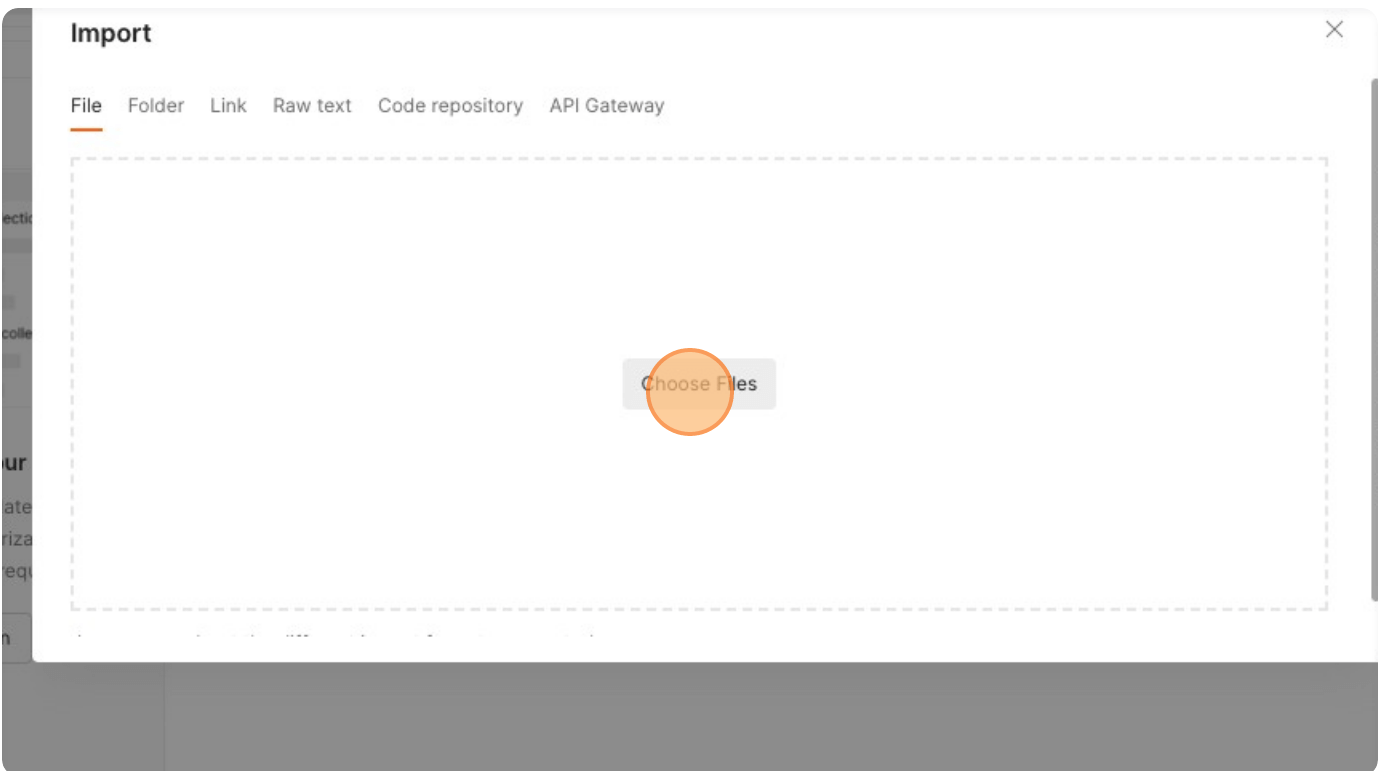
Click Choose Files - select the json file
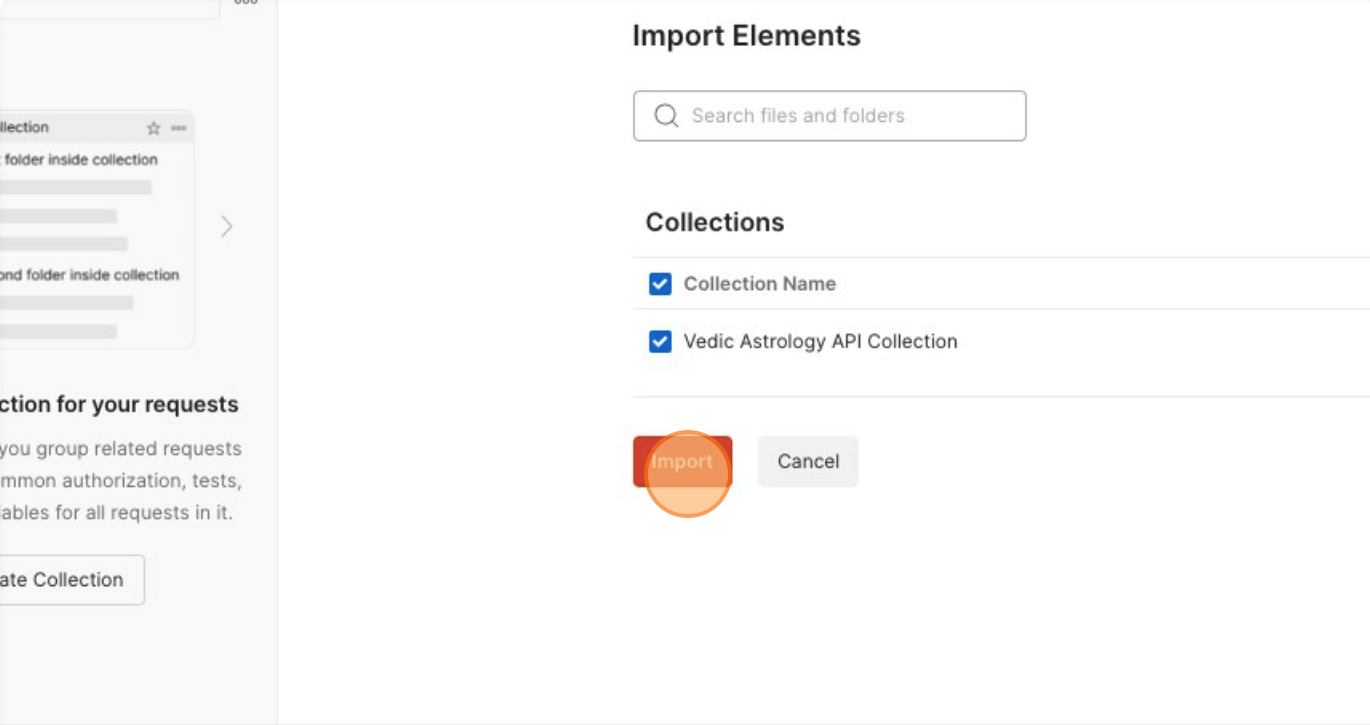
The collection name will be displayed. After confirming the collection, click on Import
Once the collection is imported, it will display the message below. You can proceed with testing the APIs after mentioning your credentials in Authorization tab
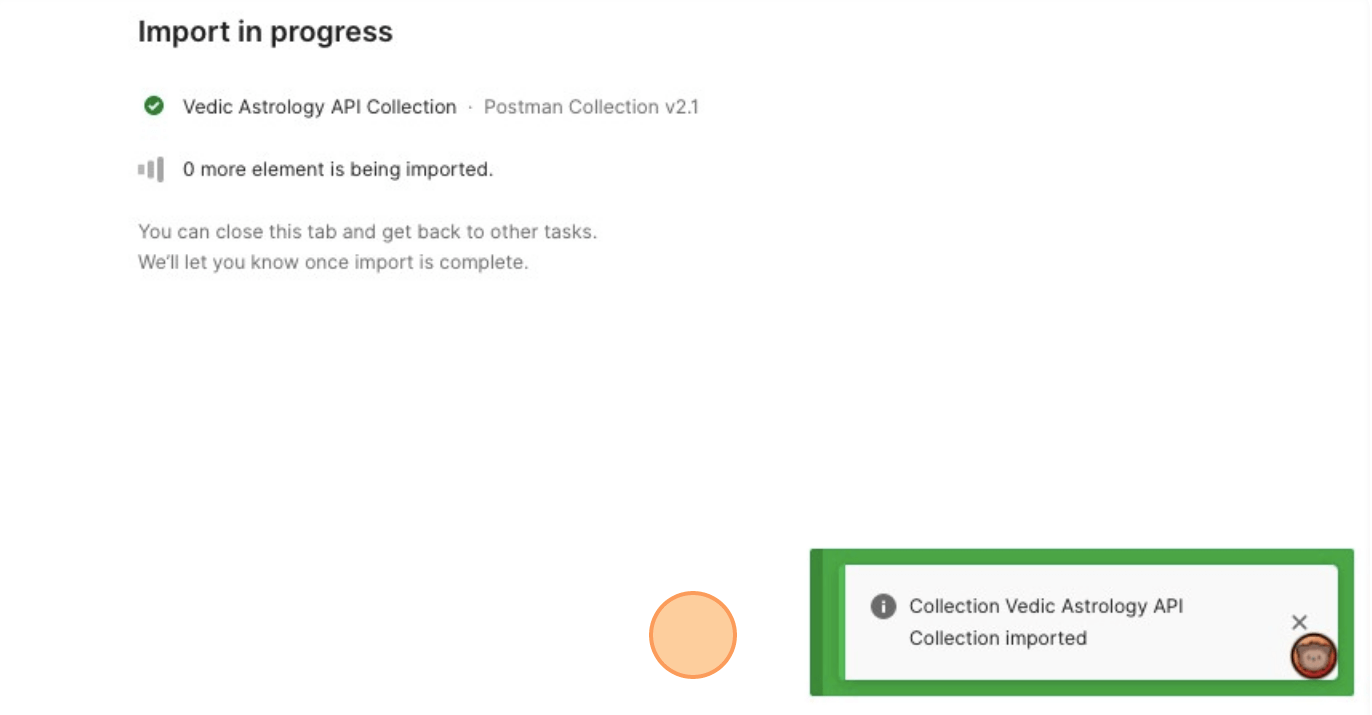
Postman Workflow
Navigate to www.postman.com and login to your account.
Under Authorization tab select Basic Auth to input details.
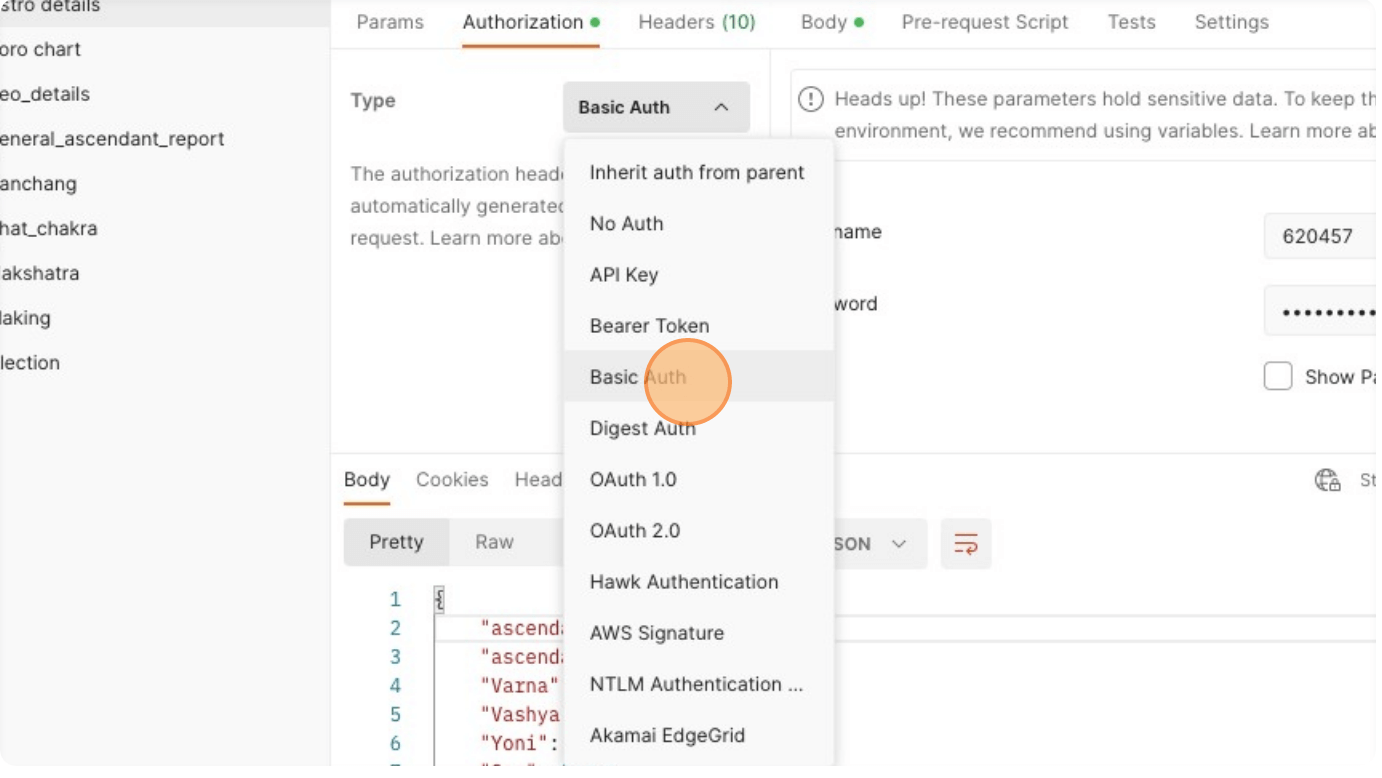
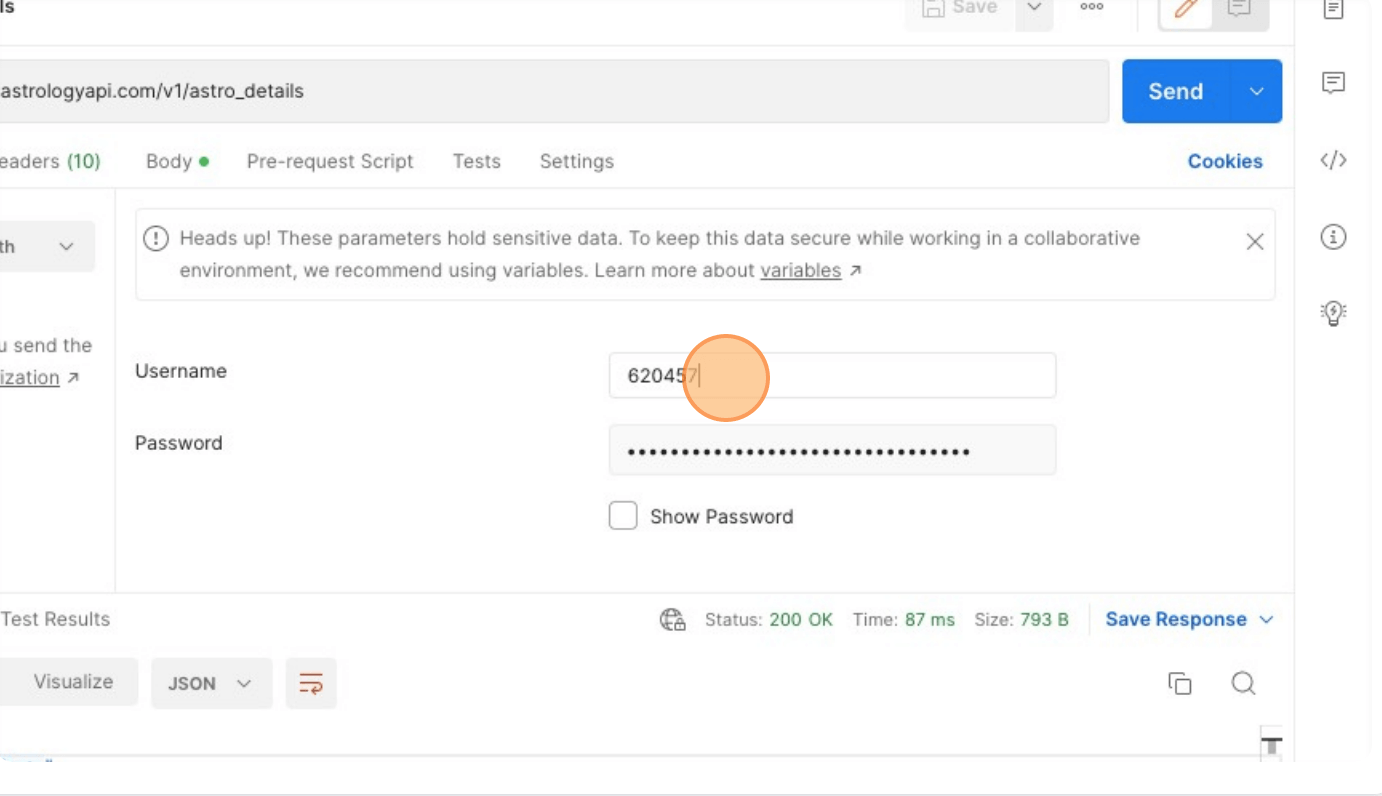
Mention the API key in the Password section and user id in the user name section. The API key and user id will be sent to you after registering at astrologyapi.com and login to your account.
Click on Body tab, select x-www-form-urlencoded and under that mention the parameters under Key and their corresponding values
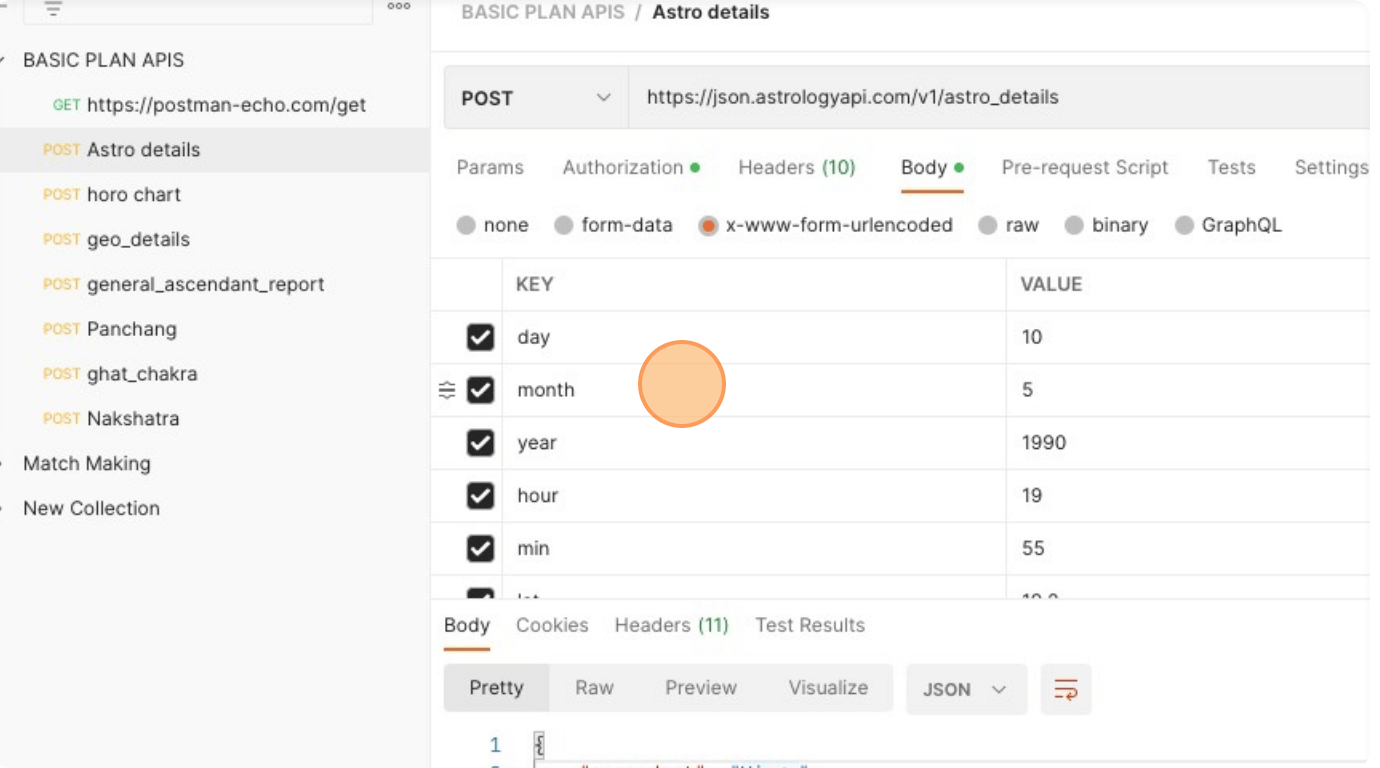
Select the POST method
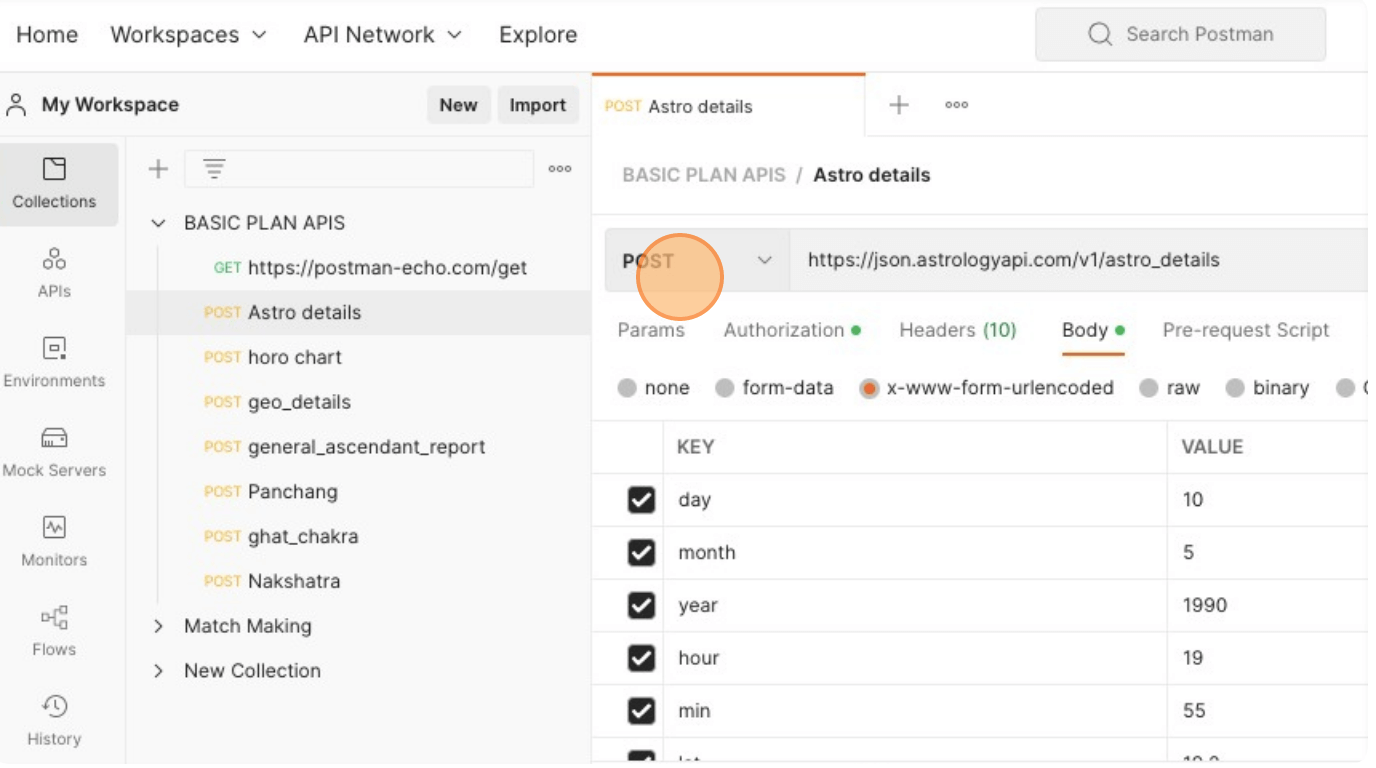
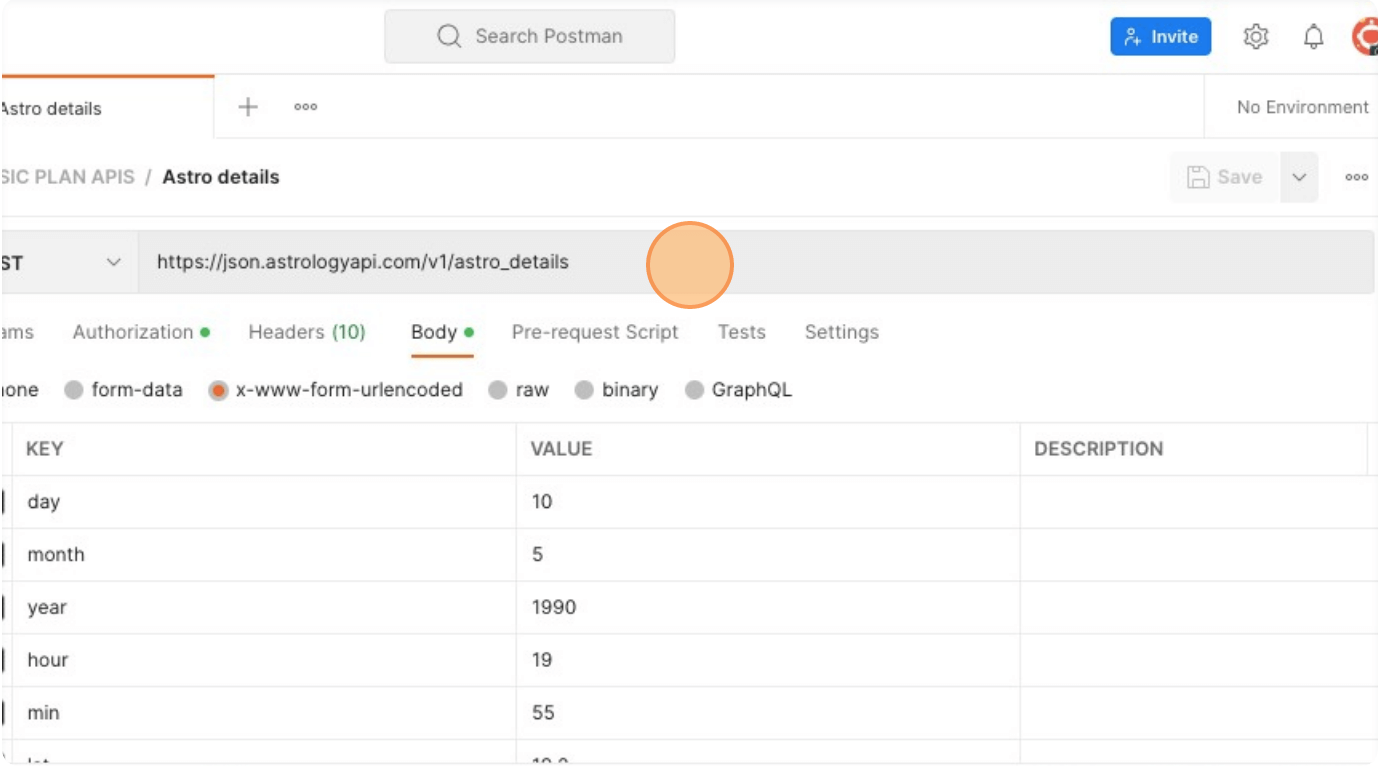
Mention the API url
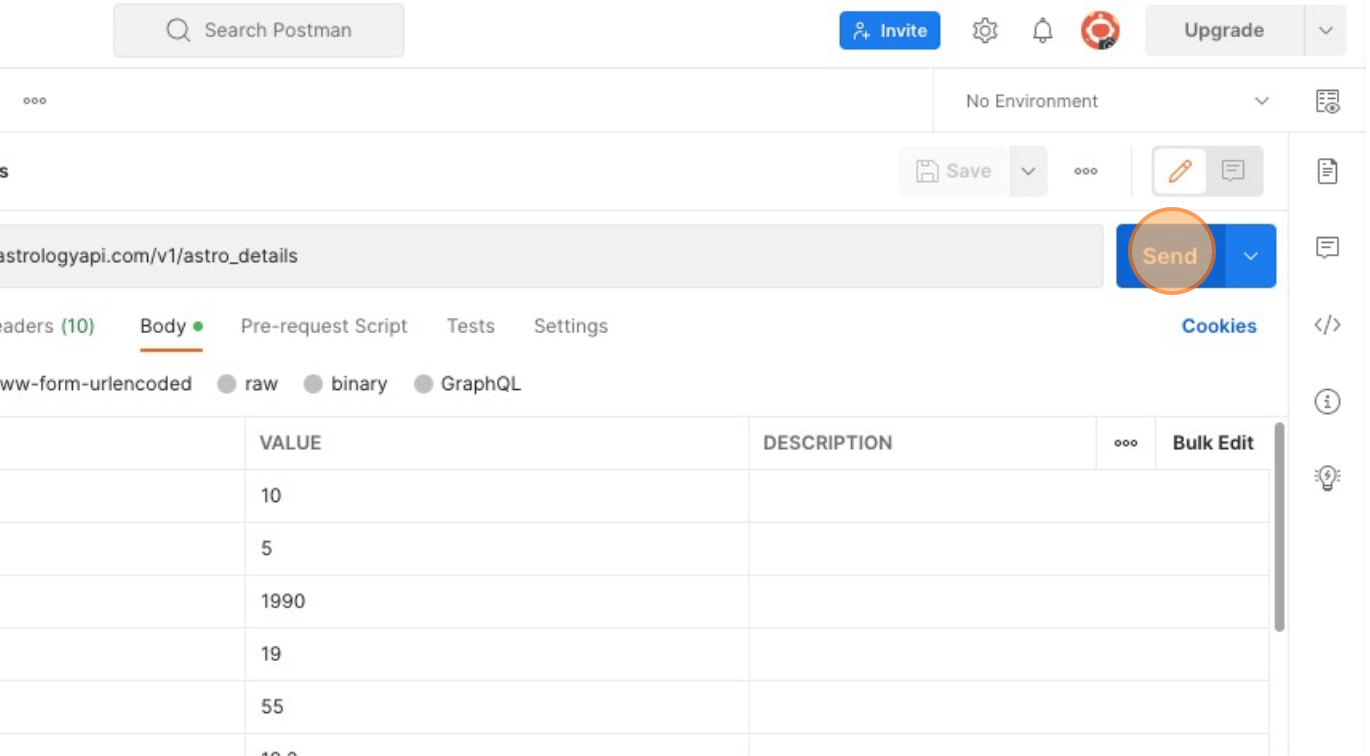
Click Send
Scroll below to view the response. Ensure that JSON is selected
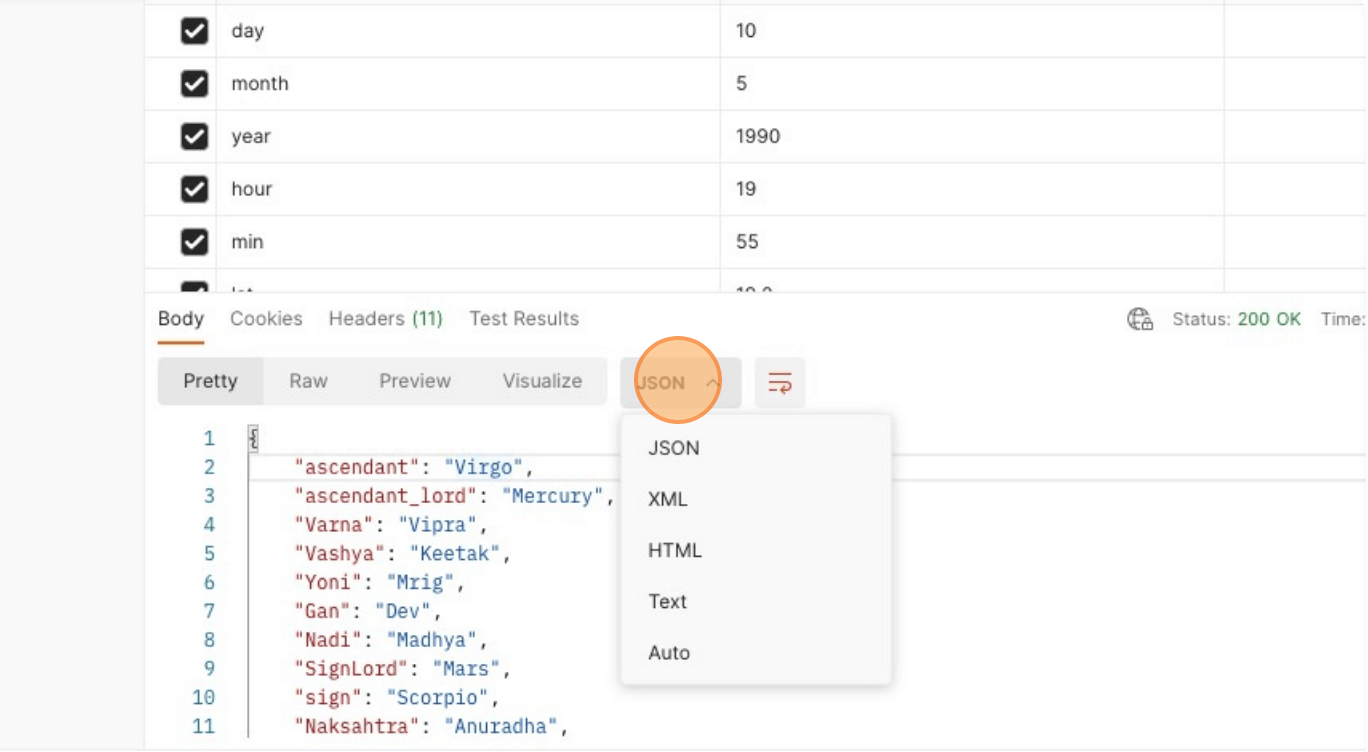
You can scroll to check the response
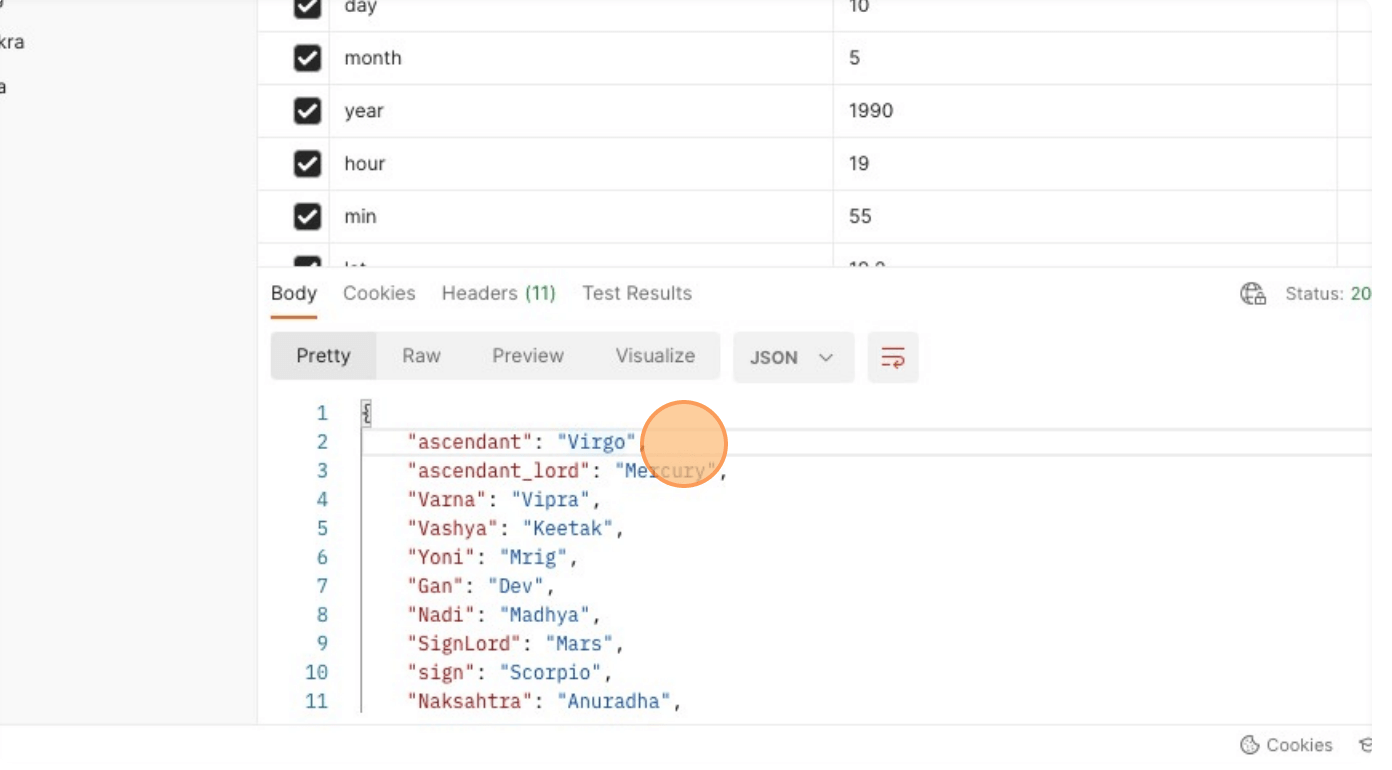
How to save a response on Postman
Navigate to www.postman.com and login to your account.
Click on Send button to get the output
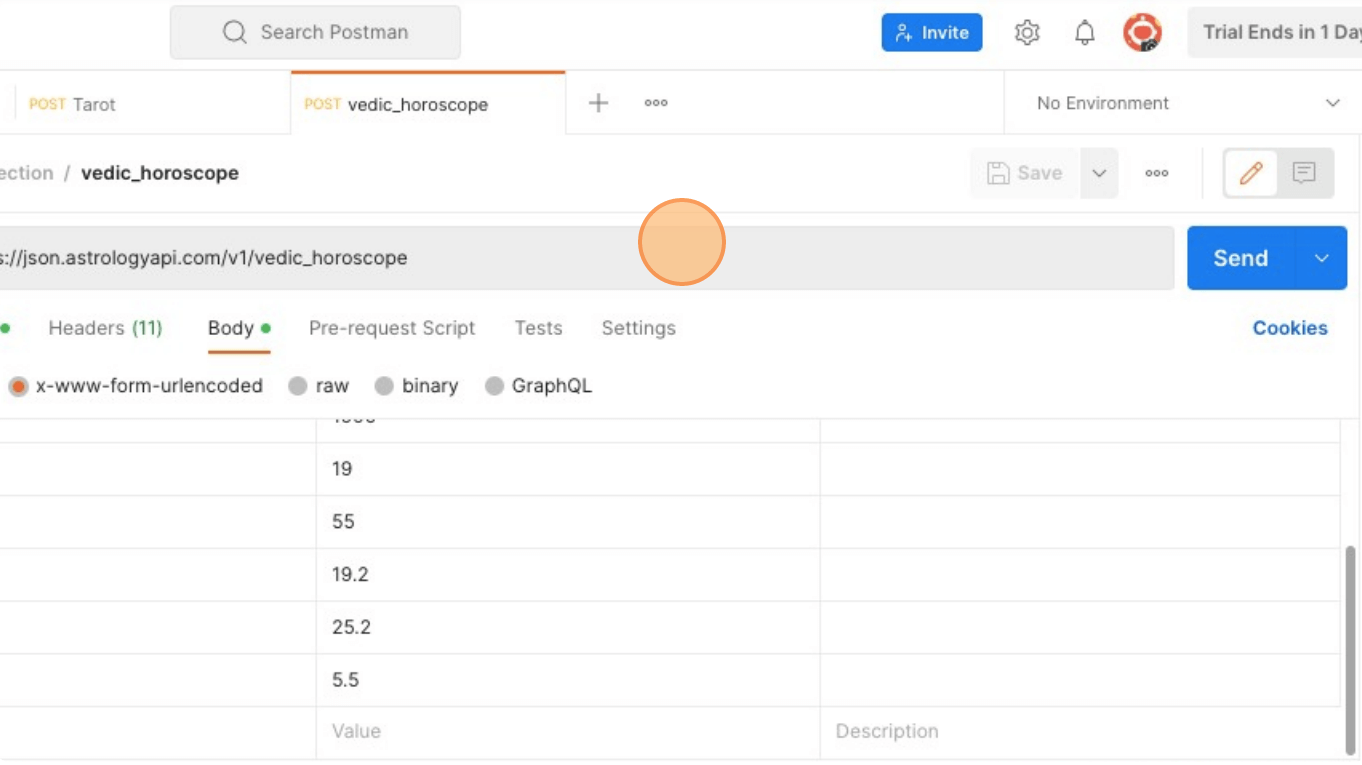
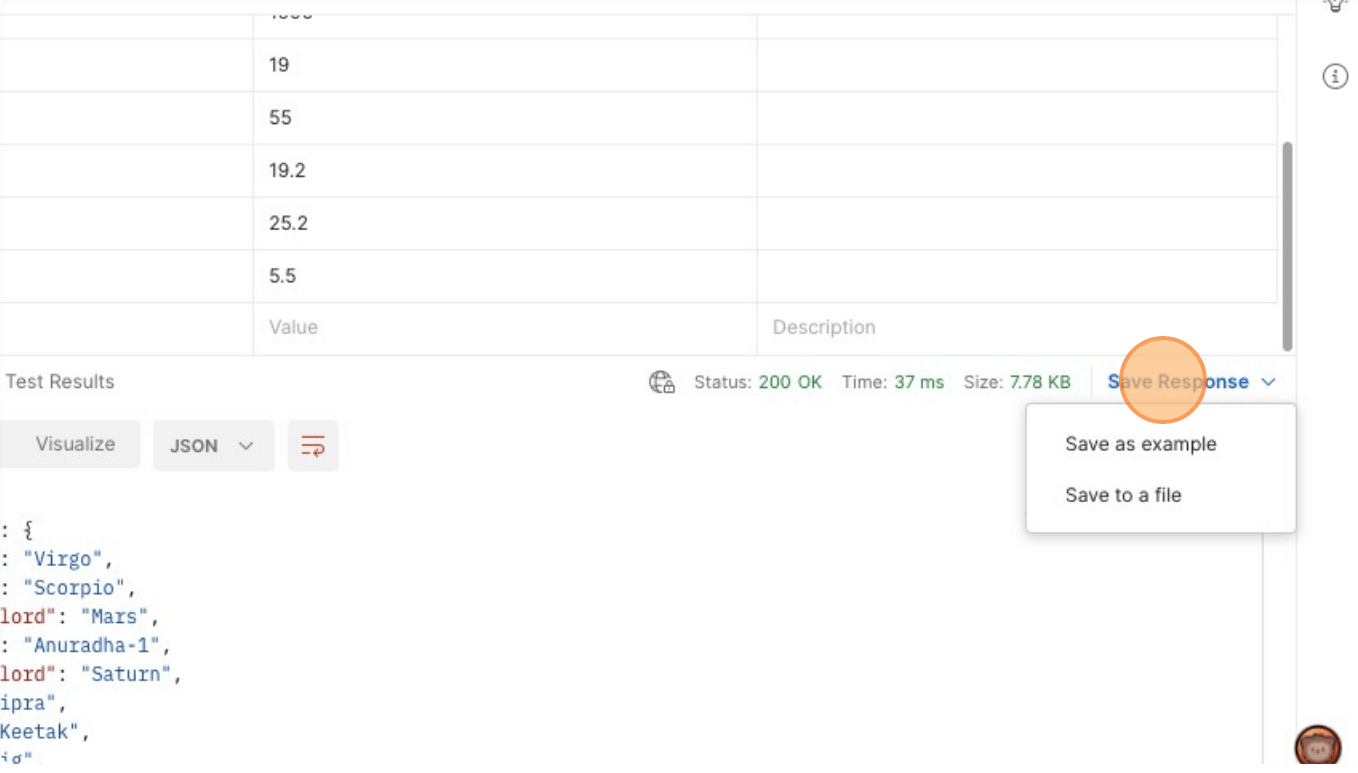
On the bottom right corner, click on Save Response
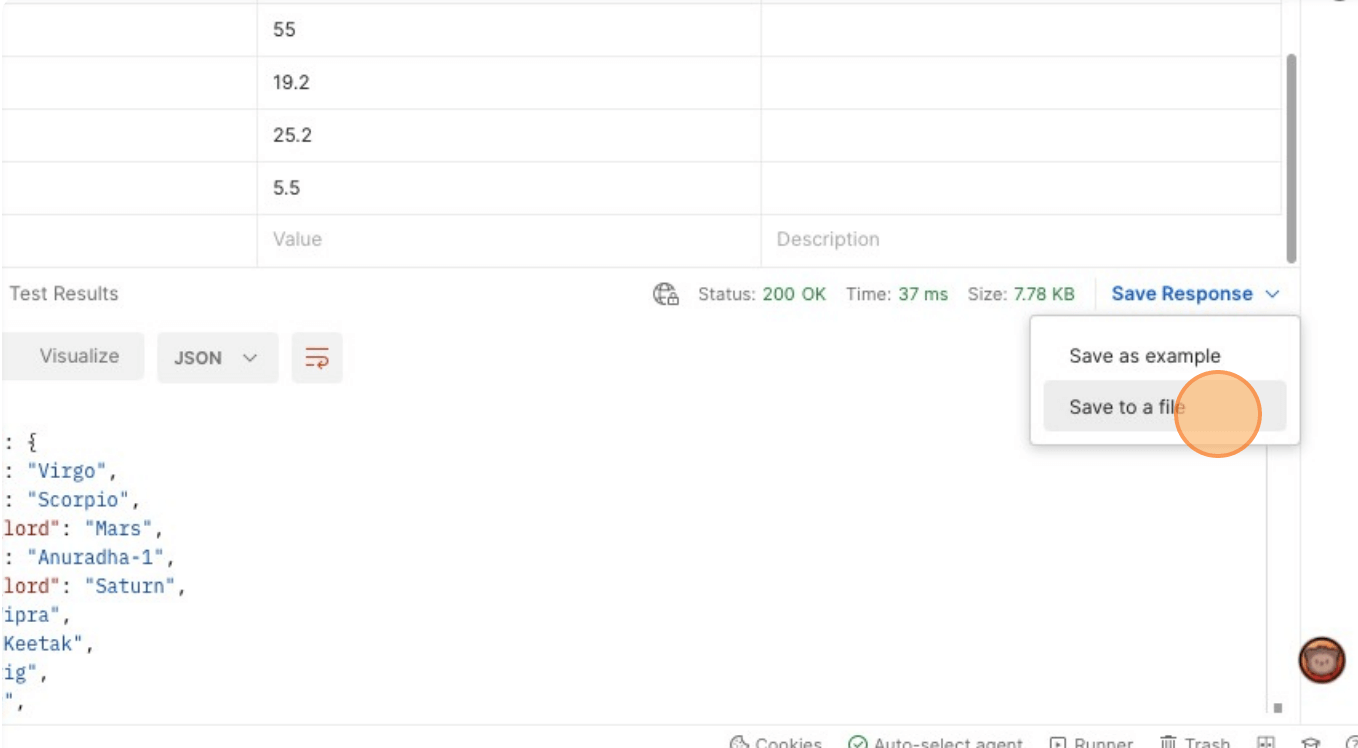
Click on Save to a file. The file will get saved in a json format
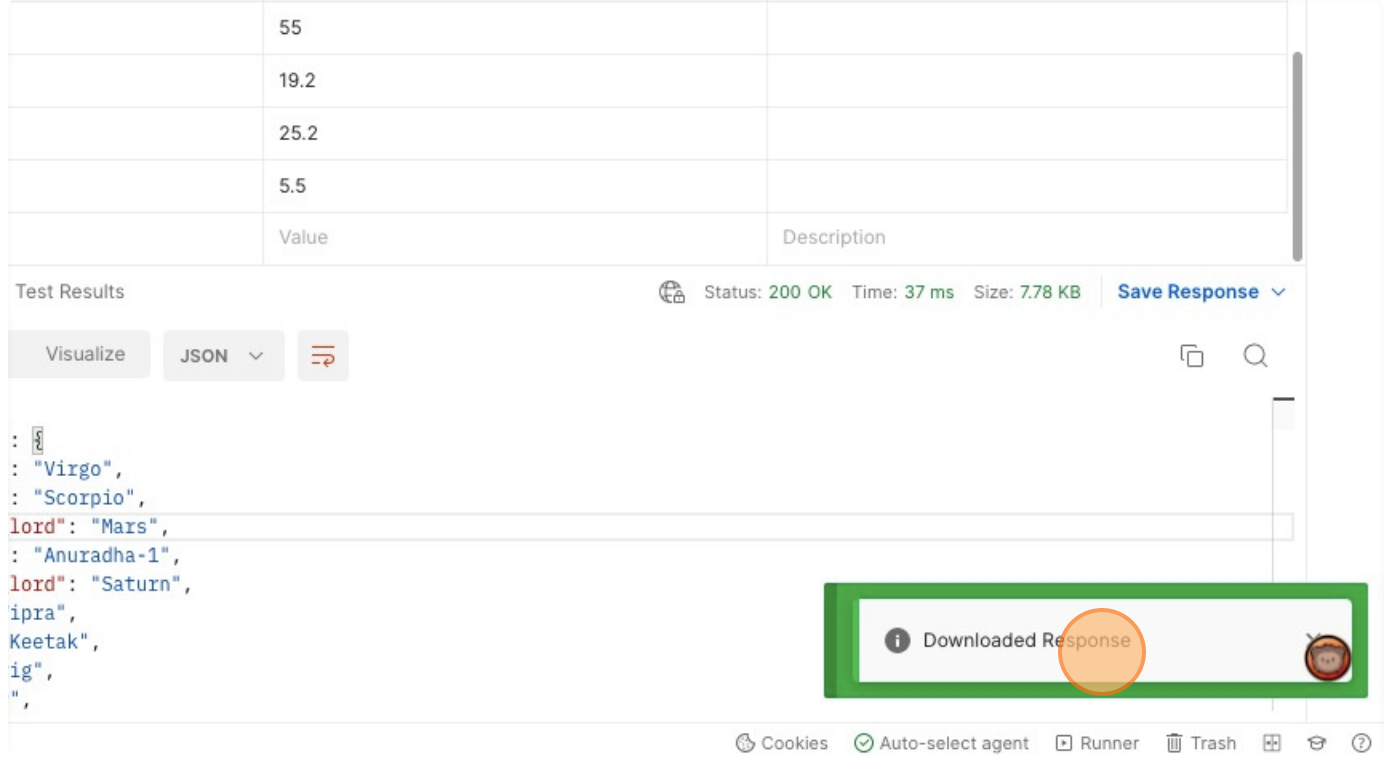
Once the file is saved, a notification that the response is downloaded will be displayed
How to change Language in Postman
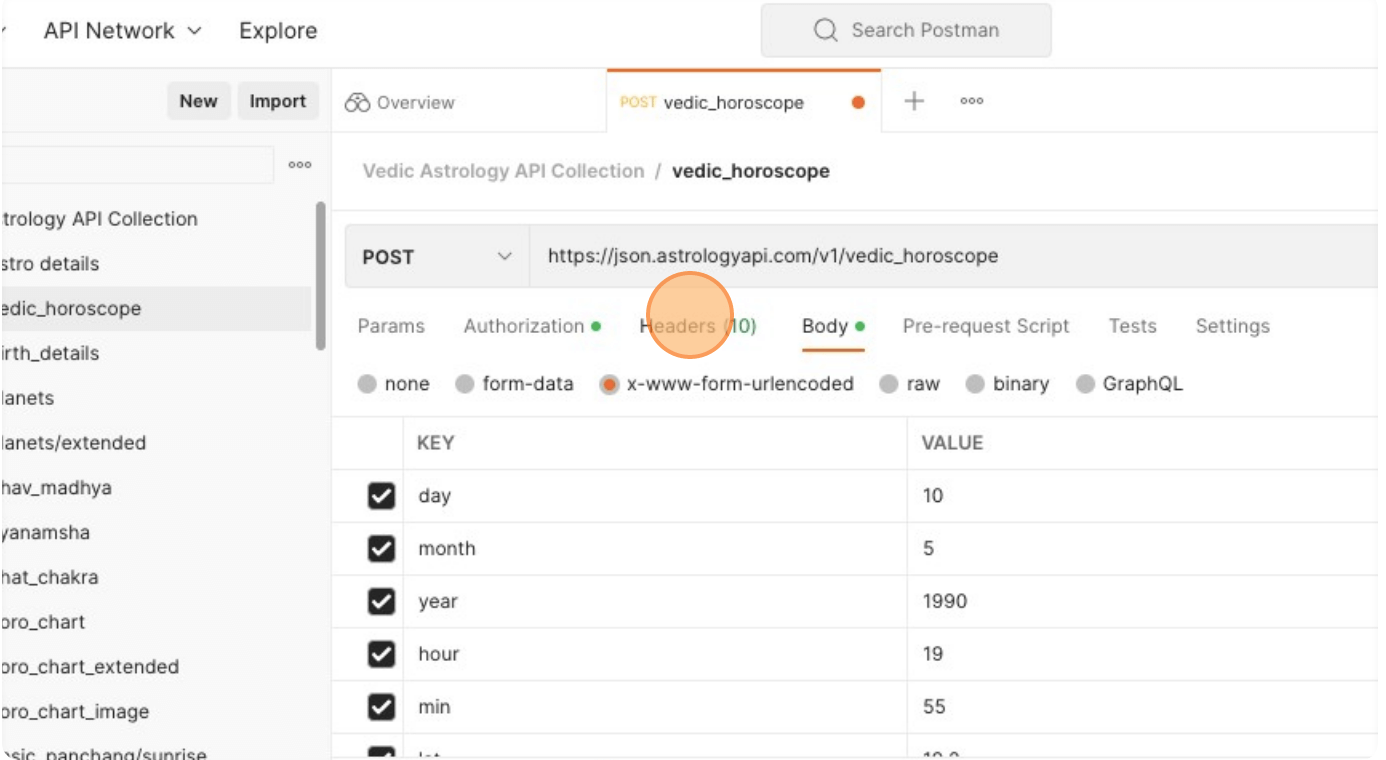
Click on Headers tab
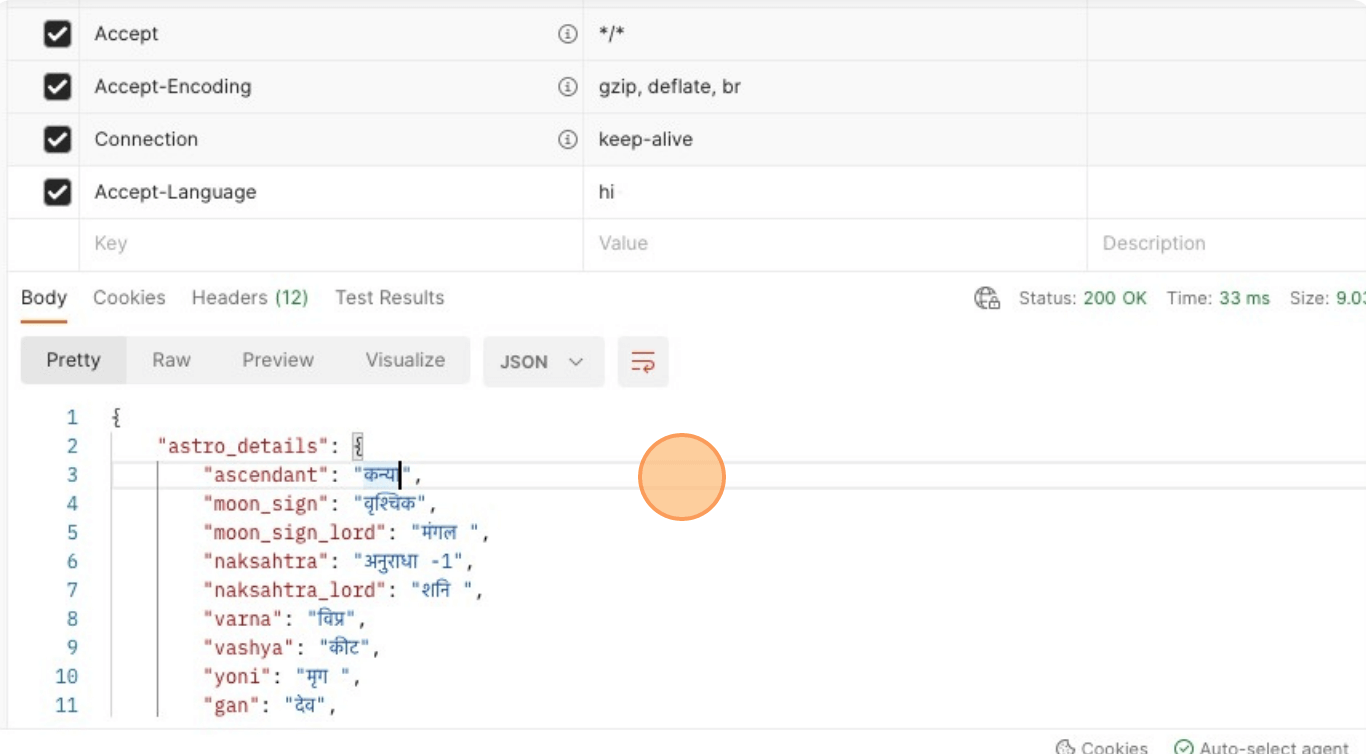
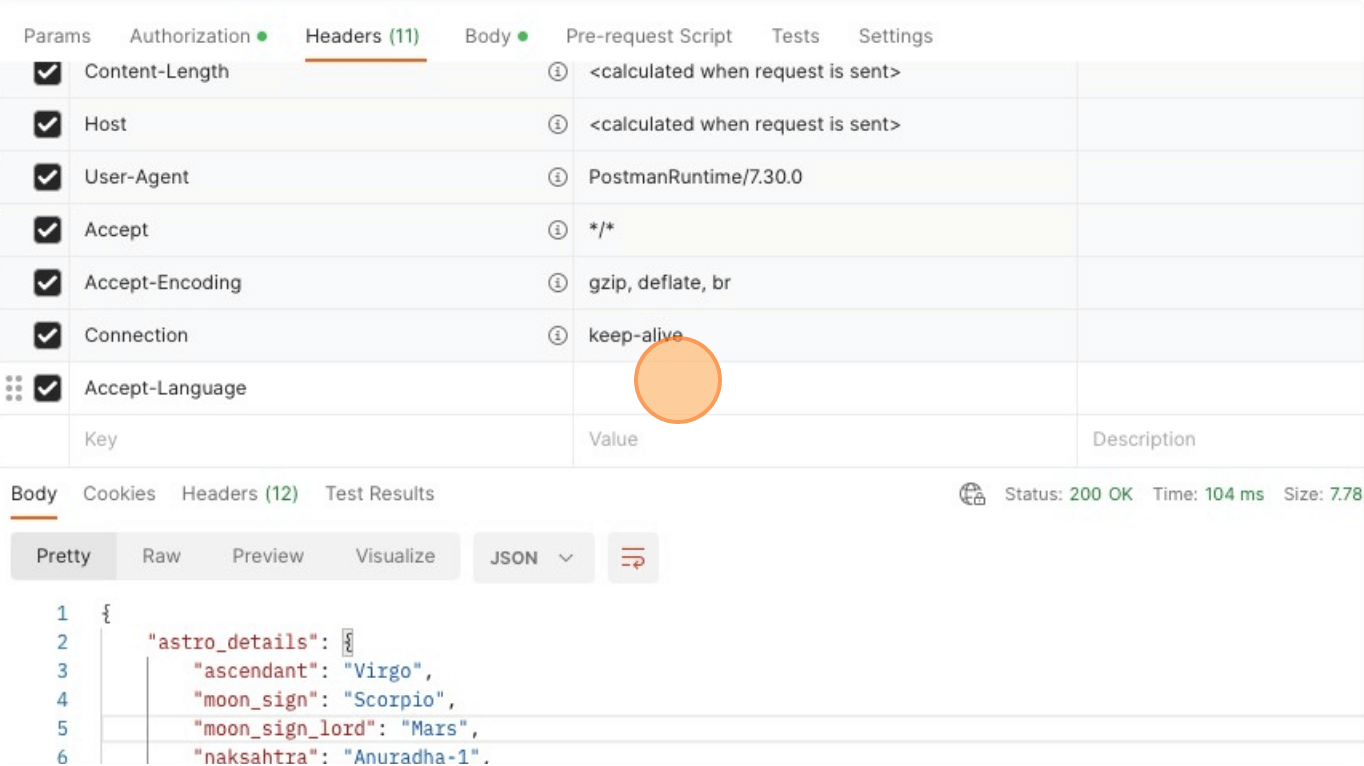
Mention Accept Language in KEY
Type the required language in the VALUE section, for e.g. : hi for hindi
Click Send button to receive the response
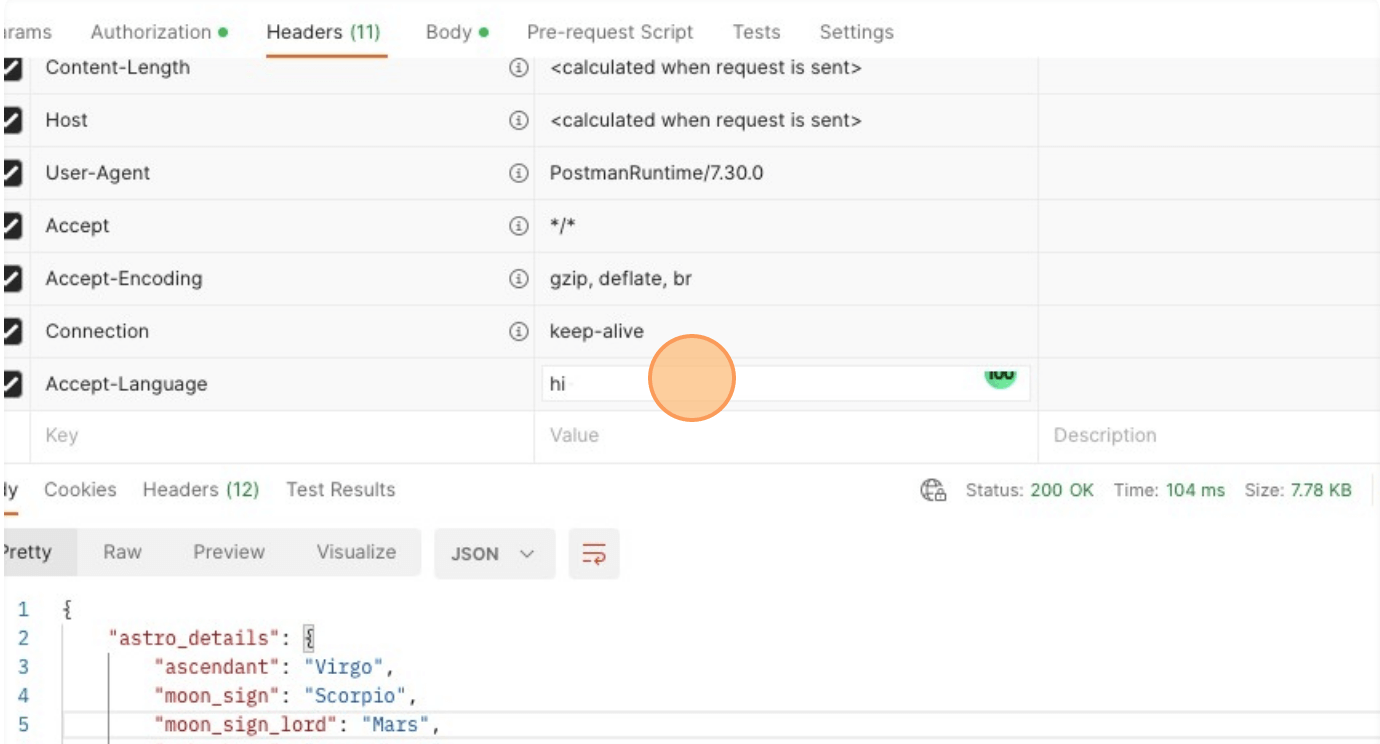
Check the output response for language change